Clickable checkboxes in Word turn static documents into interactive forms, to‑do lists, and surveys that people can complete directly on screen. To build them properly, you need to enable the Developer tab in Word and use the Check Box Content Control instead of simple symbols.
What is a clickable checkbox in Word?
A clickable checkbox in Word is an interactive box that users can check or uncheck directly in the document, without printing or editing the text. It is built using a content control checkbox from the Developer tab, which makes it ideal for digital forms, checklists, and templates.
Unlike a plain symbol, a clickable checkbox in Word stores its state (checked or unchecked) and can be locked or formatted as part of a larger form. This makes it easier to control user input and maintain a clean, professional layout.
Symbol checkbox vs interactive checkbox
Word supports both decorative symbol checkboxes and fully interactive content control checkboxes. Understanding the difference helps you choose the right option for your document.
- Symbol checkboxes act like ordinary characters and are best for printable lists that users fill in with a pen.
- Interactive checkbox in Word uses the Check Box Content Control and can be clicked to toggle between checked and unchecked states.
If your goal is to create fillable, on‑screen forms, always use an interactive checkbox in Word rather than keyboard characters or bullet symbols. This approach aligns better with accessibility and modern document workflows.
Why use interactive checkboxes in Word?
Interactive checkboxes save time and reduce errors because people can fill out forms directly in Word or as a protected template. They are especially useful for HR forms, IT request forms, surveys, and task trackers.
Using a content control checkbox also lets you combine checkboxes with other controls such as drop‑down lists, text fields, and date pickers for complete interactive form solutions. This structure supports more consistent data collection and easier editing over the long term.
How to enable Developer tab in Word
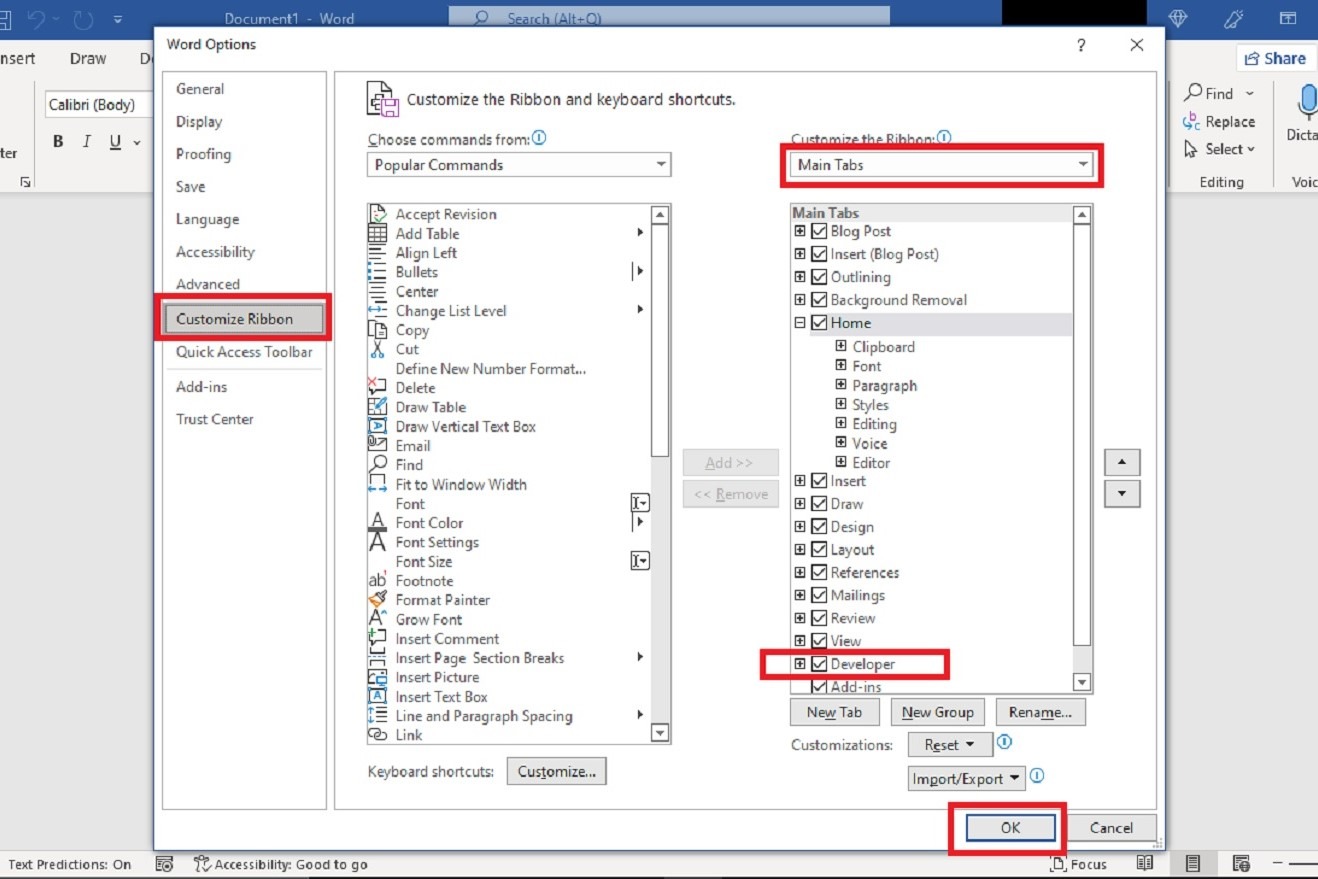
Before inserting a clickable checkbox in Word, you must enable the Developer tab, because it is hidden by default. This tab exposes advanced tools like content controls and form protection.
Steps to enable Developer tab in Word
- Go to the File tab and open Options from the left panel.
- In the Word Options window, choose Customize Ribbon, then under Main Tabs, check the box labeled Developer and click OK.
When you return to your document, you will see the Developer tab on the ribbon, giving you access to the content control checkbox and other form tools. You only need to enable it once for each Word installation, and it stays visible until you turn it off.
How to insert a clickable checkbox in Word
Once the Developer tab is visible, you can insert an interactive checkbox in Word wherever you need it. The process is straightforward and works in current desktop versions of Word.
Insert a content control checkbox
- Place your cursor where you want the clickable checkbox in Word to appear.
- On the Developer tab, in the Controls group, click the Check Box Content Control icon to insert a content control checkbox.
Word inserts a small box that toggles when clicked, indicating checked or unchecked state. You can copy and paste this content control checkbox as many times as needed to build checklists, consent options, or multiple‑choice items throughout the document.
Building a simple interactive checklist
With the clickable checkbox in place, you can format it into a clean checklist layout. This is useful for to‑do lists, onboarding steps, and recurring processes.
Create a basic checklist layout
- Insert one content control checkbox, press the Tab or Space key for separation, then type the item text (for example, “Submit report”).
- Press Enter to move to the next line and repeat: add a new interactive checkbox in Word, then its label text.
You can turn this list into standard bullets or apply heading and paragraph styles to keep your formatting consistent. For longer forms, consider using tables to align labels and content control checkboxes neatly in columns.
Designing interactive forms with content controls
For more advanced forms, combine the content control checkbox with other content controls on the Developer tab. This lets you produce structured, interactive Word templates that feel almost like web forms.
Useful content controls to combine with checkboxes
- Rich Text or Plain Text controls for open answers and comments.
- Drop‑Down List or Combo Box for predefined choices such as departments or priorities.
By mixing these controls, you can create reusable templates where users only interact with specific fields and clickable checkboxes in Word, while the rest of the document remains locked as instructions or legal text. This technique is widely used for HR onboarding forms, application forms, and internal process documents.
Customizing checkbox appearance (X vs checkmark)
By default, many content control checkboxes display an “X” when checked, which some users find confusing or visually inconsistent. You can switch this to a traditional checkmark through the control’s properties.
Change the checkbox symbols
- Select the content control checkbox, then click Properties on the Developer tab.
- In the Check Box Properties section, use the Change buttons to choose different symbols for checked and unchecked states, then confirm.
You can pick symbols from fonts such as Wingdings to get a classic tick icon instead of an X. Once updated, every click on that interactive checkbox in Word will show your chosen symbol, improving clarity for users.
Locking and protecting your interactive form
After you insert every required content control checkbox and other fields, it is best practice to protect the form. Protection prevents accidental edits to labels, headings, and instructions, while still allowing users to operate each clickable checkbox in Word.
Restrict editing while keeping checkboxes usable
- On the Developer tab, use the Restrict Editing feature to limit editing to filling in forms only.
- Start enforcement with a password if needed so that only authorized editors can modify the form structure.
With these settings, users can still toggle each interactive checkbox in Word and type into content controls, but cannot change the layout or questions. This keeps your template consistent across teams and departments.
Troubleshooting common checkbox issues
Sometimes, the checkbox option in the Controls group is greyed out or the Developer tab seems to behave unexpectedly. A few quick checks usually resolve these problems.
Simple fixes when checkboxes do not work
- Confirm that you are using a desktop version of Word that supports content control checkbox features; some web versions have limited interaction.
- Check whether the document is protected with a setting that blocks changes to controls, and adjust Restrict Editing if necessary.
If checkbox commands are disabled entirely, group policy or organizational settings may be restricting form controls, in which case the IT department may need to adjust permissions. Saving the file in the modern .docx format instead of older formats also helps ensure content control features work correctly.
FAQs about clickable checkboxes in Word
How do I make a checkbox clickable instead of just a symbol?
To make a checkbox clickable, you must enable the Developer tab and insert a Check Box Content Control rather than using a symbol from the Insert menu or the bullet library. This interactive control lets users toggle the box on and off with a click.
Can I print a document with interactive checkboxes?
Yes, documents that contain an interactive checkbox in Word can be printed like any other file, and the current checked or unchecked states will appear on paper. However, printed copies are no longer interactive, so users must mark them manually with a pen.
Do clickable checkboxes work in Word Online?
Word Online can usually display existing content control checkboxes and their state, but may have limitations when it comes to inserting or editing them compared with the full desktop application. For full control over form creation, use the desktop version of Word where the Developer tab and content control checkbox are fully available.
Can I change the default X to a tick mark?
Yes, select the checkbox, open its Properties on the Developer tab, and change the Checked Symbol to a tick mark from a font such as Wingdings. After saving, every time you click that content control checkbox, it will show the new checkmark symbol instead of an X.
Are content control checkboxes better than legacy checkboxes?
Modern content control checkbox elements are recommended over legacy form fields because they integrate better with newer versions of Word and are more likely to be supported in future updates. Legacy controls still exist but are gradually being phased out, especially in web‑oriented scenarios.
Call to action
Start by opening a test document and following the steps to enable the Developer tab in Word, then add your first clickable checkbox in Word to see how easily it transforms a simple list into an interactive form. Once comfortable, build a full checklist or template using interactive checkbox in Word controls, and consider sharing a downloadable version on your blog or intranet to give your audience or team an immediate, practical tool.