A strong Google Business Profile can help a local company earn the click. The website then has to earn the call, booking or visit.
That handoff is where many local marketing journeys weaken. A potential customer sees a convincing rating in Google Search or Maps, opens the business’s WordPress site and finds only self-written claims. The public evidence that created interest is no longer visible at the moment the visitor compares services, prices, locations and availability.
Embedding Google reviews can preserve that evidence. WordPress gives site owners several ways to do it, from a native plugin block to a universal HTML embed. The technically easiest route is not always the best route for every site. A multi-location company, a one-page trades website and a heavily optimised custom theme have different needs.
This guide explains the main implementation methods, offers a step-by-step installation and testing process, and maps review formats to local customer intent. It also clears up a persistent misconception: showing reviews can support visitor trust, but it does not automatically produce higher rankings or star-rich search results.
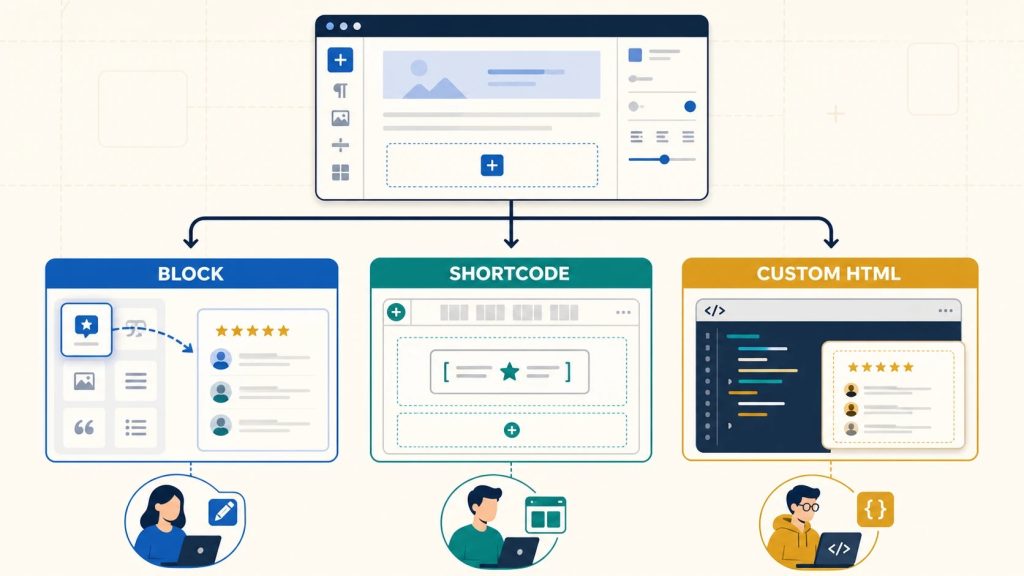
Image 1. Choose the WordPress method according to who maintains the site and where the widget must appear—not according to which option sounds most technical.
Before WordPress: confirm the source profile
A widget can faithfully display the wrong business. Before installing anything, check the Google Business Profile that will supply the reviews.
Verify:
- the public business name;
- the address or service area;
- the primary phone number;
- the website URL;
- business category;
- opening hours;
- the correct location when similar branches exist; and
- whether recent reviews and owner responses appear normally.
This matters most for multi-location businesses. A search for a brand name can return several profiles, a former address or a similarly named company. Record the correct Google Maps URL or Place ID before creating the widget.
The profile should also have a real review-management owner. Embedding reviews is a display decision, not a substitute for responding to customers. Google’s review best-practice guidance recommends timely, clear and personalised responses, including constructive handling of negative feedback.
Three sensible ways to add reviews in WordPress
Most WordPress sites should choose among a native block, a shortcode or a Custom HTML embed. All can produce a similar front-end result; they differ mainly in editorial workflow and maintenance.
Method 1: a native plugin block
Best for: site owners and editors who build pages in the block editor and want a visual, low-code workflow.
A dedicated plugin may let an administrator find the business, create the widget and insert it as a named Gutenberg block. This is usually the easiest route for a non-technical team because the block appears in the editor like other page elements.
Advantages:
- editors can add or move the component without touching code;
- the correct widget can be selected from an interface;
- preview and styling options may be available inside WordPress; and
- a well-built plugin can load its script only on pages that contain the block.
Points to check:
- the plugin’s update history and compatibility information;
- what external service it connects to;
- what data is sent during setup and public page loads;
- whether uninstalling removes its settings cleanly; and
- how the page behaves if the service is temporarily unavailable.
The official GR Widget listing on WordPress.org documents its Gutenberg block, shortcode, external service, data flows and installation requirements. Whatever plugin you choose, use this level of disclosure as an evaluation benchmark.
Method 2: a shortcode
Best for: Elementor, the classic editor, page builders, widget areas and reusable template regions that accept WordPress shortcodes.
A shortcode is a compact placeholder such as:
[example_reviews id=”your-widget-key”]
The exact name and attributes depend on the plugin. WordPress converts the shortcode into the rendered widget when the page loads.
Advantages:
- easy to paste into many builders;
- compact and convenient for reusable areas;
- keeps the vendor’s full embed code away from editors; and
- can be placed in page-builder modules that do not expose custom blocks.
Points to check:
- whether the shortcode still produces clean output if the plugin is deactivated;
- whether the script is loaded once when several shortcodes appear;
- whether editors can identify which widget an opaque ID represents; and
- whether cached pages refresh correctly after widget settings change.
Document every shortcode in a small site inventory. A future editor should not have to search the entire database to discover where a plugin is used.
Method 3: a Custom HTML embed
Best for: a one-off placement, a custom theme, a site that avoids extra plugins, or a widget managed outside WordPress.
A managed widget commonly supplies a script tag plus a container element. The precise code must come from the provider, but the pattern often resembles:
<script src=”https://provider.example/widget.js” async defer></script>
<div class=”reviews-widget” data-widget-id=”YOUR_WIDGET_ID”></div>
The script loads the rendering logic; the div tells it which widget to display and where.
WordPress provides a Custom HTML block for adding code to a page. Be aware that WordPress may strip script tags for users who do not have the unfiltered_html capability. On a managed site, an administrator or developer may need to place the script in an approved theme or integration area, leaving only the container in page content.
Advantages:
- no dedicated plugin is required;
- the same embed pattern can work across different platforms;
- it suits tightly controlled custom builds; and
- the script can often be loaded once in a template while containers are placed on selected pages.
Points to check:
- never paste unverified code from a forum or third-party tutorial;
- keep script ownership documented;
- avoid adding the same script repeatedly on one page;
- test compatibility with security headers and consent rules; and
- confirm that theme updates will not overwrite a hand-edited template.
Which method should a local business choose?
Use the maintenance workflow as the deciding factor.
Choose a native block when marketing staff update pages in Gutenberg and need visual control. Choose a shortcode when a page builder or classic editor is central to the site. Choose Custom HTML when a developer controls the theme, the placement is limited, or avoiding another plugin is a real architectural priority.
A small business does not receive extra marketing value for choosing the most technical route. The best implementation is the one the current team can update safely, test and remove.
For a detailed GR Widget-specific walkthrough covering its plugin, block, shortcode and no-plugin routes, the guide on how to embed Google reviews WordPress sites walks through each workflow.
A safe step-by-step implementation
The following process works for all three methods.
Step 1: back up and use staging
Create a current backup and test on a staging copy if the site supports one. A widget may interact with the theme, caching plugin, JavaScript optimisation, content security policy or consent manager. Staging provides a safe place to find conflicts.
Step 2: record a performance baseline
Test the intended page before adding the widget. Save the result and note visible loading behaviour on a phone. The point is not to chase a perfect laboratory score; it is to identify the cost of the new integration.
Step 3: connect the correct business
Search by business name and verify the address, rating and review count before continuing. For several branches, name widgets by location and purpose, such as Manchester – Service page feed or Leeds – Footer badge.
Step 4: choose the smallest useful layout
Start with the job. A compact rating badge may be enough beside a “Call now” button. A service page may benefit from three detailed reviews. A giant carousel is not automatically more persuasive.
Step 5: insert the block, shortcode or embed
Follow the provider’s own current installation code. For a universal embed, ensure the external script appears only once. If the provider supports async or defer, preserve those attributes; they allow page parsing to continue while the script loads.
Step 6: test the editor and live page
Check both views. Some JavaScript widgets show only a placeholder inside the editor but render on the public page. Clear the page cache and content-delivery cache after publishing a new embed or changing its configuration.
Step 7: test mobile and accessibility
Use a real phone as well as a narrow browser window. Navigate with a keyboard. Confirm that:
- rating information has a text equivalent;
- review text remains readable at 200% zoom;
- carousel controls have clear labels and visible focus;
- motion can be paused or does not start automatically;
- the component does not create horizontal scrolling; and
- floating elements do not cover the call button, chat widget or cookie controls.
Step 8: test failure behaviour
Block the external widget domain temporarily or use an offline test. The page’s navigation, service copy and conversion action should still work. Reserve sensible space if late rendering causes disruptive layout movement.
Step 9: publish one placement first
Do not add a large feed to every page on day one. Launch the highest-value placement, observe it, then expand only when a second placement has a distinct purpose.
Place reviews according to local search intent
The homepage is only one stop in a local buying journey. A visitor searching for “emergency plumber near me,” “wedding photographer Bristol” or “private dentist open Saturday” may land directly on a service or location page. Review evidence should follow that intent.
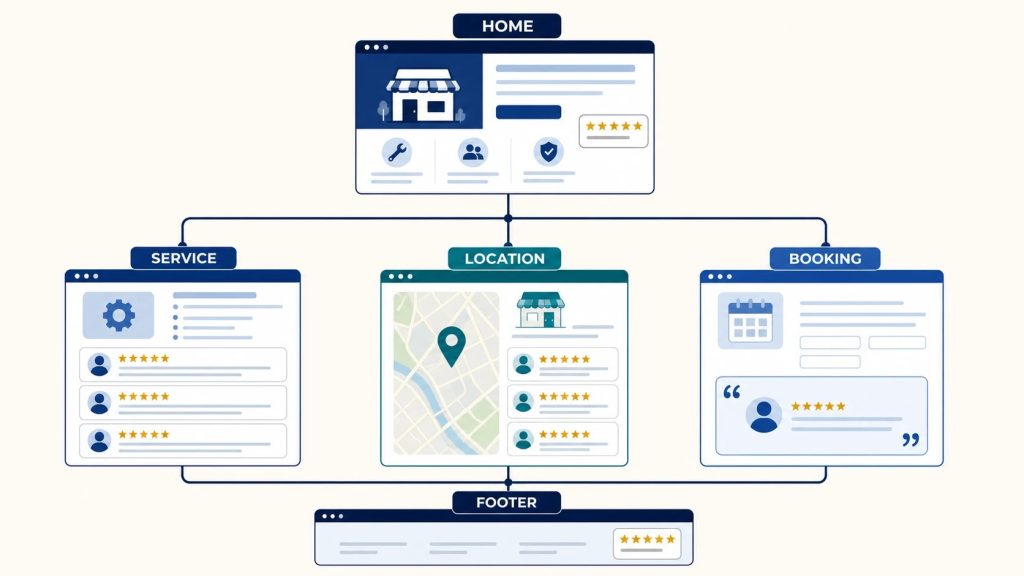
Image 2. A site-wide review strategy uses different depths of proof: a compact cue globally, specific experiences on service and location pages, and concise reassurance near booking.
Homepage: establish broad confidence
Use a rating badge or a small selection that reflects the overall business. Keep the main proposition—service, area and next action—visually dominant.
Service pages: prove capability
Select or surface reviews that naturally discuss the service. Visitors benefit from details about diagnosis, punctuality, communication, workmanship or outcome. Do not ask customers to insert keywords into their review; genuine language is more credible and avoids turning a request into a script.
Location pages: connect evidence to the branch
For multi-location organisations, show feedback from the correct profile wherever possible. A review feed from the flagship branch on every city page can confuse visitors and weaken the page’s local relevance. Label the source location clearly.
Booking and contact pages: reduce process anxiety
A short review about ease of booking, clear estimates or friendly staff can support the final action. Keep it static and concise so it does not distract from form completion.
Footer: use a lightweight site-wide cue
A compact rating can maintain confidence across the site. Because a footer appears everywhere, check whether the integration loads external resources on every page and whether the business value justifies that cost.
Dedicated reviews page: add depth and accountability
Combine a wider feed with a link to the original Google profile, an explanation of how the business handles feedback and a route for real customers to contribute. Do not make this page a dead end; link onward to relevant services and contact options.
Connect review display to an ethical collection process
Fresh review evidence begins with real service delivery. WordPress placement cannot compensate for inconsistent customer experience or neglected responses.
Google explains how to create an official review link or QR code. It suggests using the link on receipts, in thank-you emails and after chat interactions, while explicitly prohibiting free or discounted goods and services in exchange for reviews.
A fair local-business process is simple:
- Ask customers after the service has been delivered.
- Make the request easy but neutral: invite an honest review, not a five-star review.
- Send all genuine customers through the same process rather than screening out unhappy ones.
- Never require particular words, a minimum rating or proof of a positive post.
- Respond promptly and protect customer privacy.
- Use patterns in feedback to improve operations.
Display and collection should remain distinct. The widget shows feedback; the business earns it.
Performance and privacy checks for WordPress
Plugins are often blamed for slow WordPress sites, but the useful question is what the selected integration actually loads.
Open the browser’s network tools or use a reputable performance service. Compare before and after:
- number of external requests;
- transferred JavaScript, CSS, fonts and images;
- work on the browser’s main thread;
- changes in layout as the widget appears; and
- whether the resource loads on pages without a widget.
web.dev’s guide to efficient third-party JavaScript recommends asynchronous loading for scripts that are not essential to initial rendering. Also check whether the widget loads optional web fonts, cookies or analytics. Document the external provider in the site’s privacy and vendor records as appropriate for the business and jurisdiction.
Avoid “optimising” by randomly delaying or combining the widget’s script. Caching and performance plugins can change execution order and break third-party components. Follow the provider’s instructions, then test the real result.
Troubleshooting common problems
The widget is blank
Confirm the block or shortcode references a valid widget. Check that the external script is not blocked by a security plugin, consent tool, content security policy or browser extension. Clear caches and inspect the browser console for a specific error.
WordPress removes the script tag
The current user may lack permission to save unfiltered HTML. Use the native plugin/block route or ask an administrator or developer to add the provider’s approved script in a controlled location. Do not weaken site security simply to make pasted code survive.
The wrong location appears
Reopen the widget settings and compare the selected address or Place ID with the correct public profile. Rename widgets so branch IDs are obvious to editors.
New reviews do not appear immediately
Check the provider’s synchronisation schedule. Many managed services refresh periodically rather than in real time. Confirm the account or plan is active, then trigger a documented manual refresh if one exists.
The carousel breaks on mobile
Disable conflicting minification or optimisation on staging, test for theme CSS overrides and confirm the container has enough width. If the problem persists, choose a simpler list or badge. A stable layout is more valuable than an animated one.
The page jumps during loading
Use a layout with predictable dimensions or reserve a reasonable minimum height. Avoid placing a slow-loading carousel above the primary heading or form.
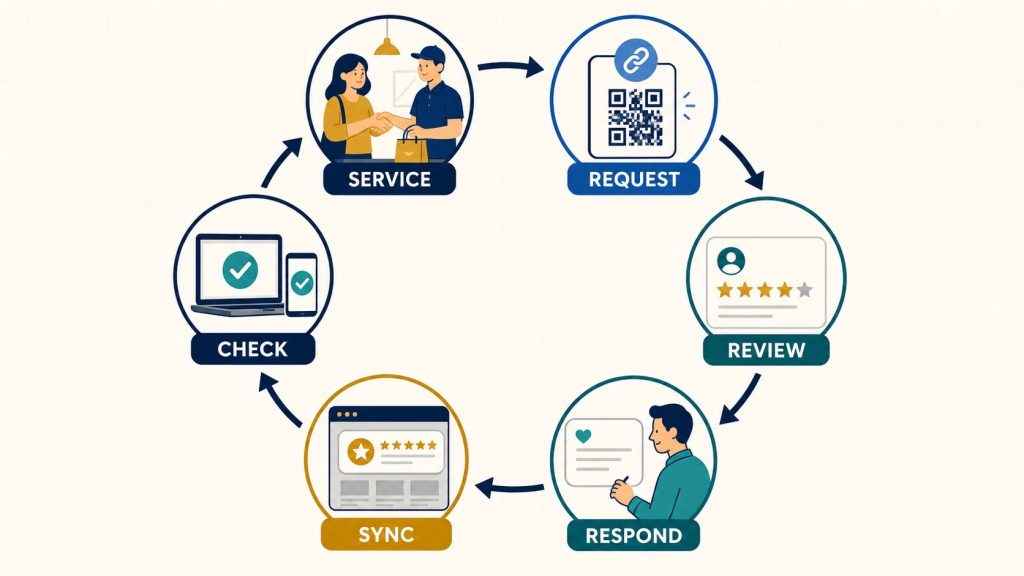
Image 3. The embed is one step in a reputation cycle. Operational ownership and recurring quality checks keep the website evidence current and credible.
What reviews and structured data can—and cannot—do for SEO
Reviews are important to local reputation, and Google says they can help a Business Profile stand out. A website review section may also improve the page’s usefulness by helping visitors evaluate the business.
However, do not promise that installing a plugin will increase rankings. Do not promise that adding rating markup will generate organic star snippets.
Google’s review snippet structured-data documentation says review rich results are not guaranteed. It also treats reviews about a LocalBusiness or Organization on that same entity’s own website as self-serving, even when the reviews arrive through an embedded third-party widget. That type of markup is ineligible for the local-business review feature.
The correct strategy is straightforward:
- display reviews to help people make decisions;
- use accurate markup only where it follows Google’s eligibility and content rules;
- never hide or fabricate review content for search engines; and
- measure calls, bookings, enquiries and user experience rather than assuming an SEO result.
A quarterly maintenance checklist
Assign one person to own the integration and review it every three months.
- Confirm the correct business and location still display.
- Check that new reviews are synchronising on the expected schedule.
- Test all source and “write a review” links.
- Review mobile layout, keyboard controls and zoom.
- Compare performance with the previous benchmark.
- Confirm the widget does not overlap new chat, cookie or booking tools.
- Update the WordPress plugin and test it in staging first where practical.
- Remove unused widgets, shortcodes and old placements.
- Review account ownership, subscription status and vendor documentation.
- Re-read visible excerpts to ensure truncation preserves their meaning.
Keep a short record of where each widget appears, which profile it uses and how it is inserted. That inventory turns future redesigns and plugin changes from detective work into routine maintenance.
Final recommendation
For most local businesses using WordPress, the best starting point is one compact rating cue on the homepage or site header and one set of relevant, detailed reviews on the highest-value service page. Use a native block when editors work in Gutenberg, a shortcode when the page builder prefers it, or a Custom HTML embed when a developer controls the implementation.
Whatever route you choose, verify the source profile, load the external script carefully, test the page on mobile and keyboard, and confirm the main content still works when the service does not. Connect the display to a fair review-request and response process. Treat structured data claims with caution.
The result should feel less like an advertisement and more like useful evidence: real customer experiences, clearly attributed, available where a local prospect is deciding whether to call.